Just for fun... click:
|
|
Just for fun... click:
|
| Welcome | About Us | Services | Products/Freebies | Resources | Support | Contact Us |
| Intro | How To | Custom Development |
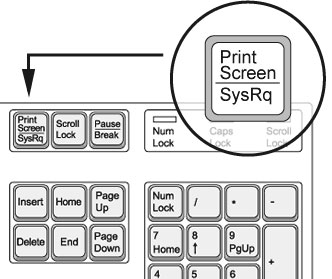
How To Take a Screenshot on a PCTaking a screenshot of your screen can be very useful in showing someone what you see on your screen without setting up a screen sharing program. Below are instructions for the PC. Click here for Mac instructions. Step 1: Locate the "Print Screen" key on your keyboard (normally on the upper right near the number pad). It may be abbreviated as "Prt Scr".
The screenshot is saved to the Clipboard. If you want to save the screenshot to a file, proceed with steps 2 - 4. Step 2: In the Start menu, find and open Paint or another image editor. For Windows XP and earlier, Paint is located in the Accessories folder. Step 3: In the Paint window, go to the Edit menu and click Paste to paste your screenshot on a blank canvas. Step 4: Go to the File menu and click Save to save the screenshot on your computer. Happy screenshooting. |
| Welcome | About Us | Services | Resources | Products/Freebies | Support | Contact Us |
| © 1998-2022 Tony White Designs, Inc. |